
The app and installation instructions are available in your account. Choose your device there.
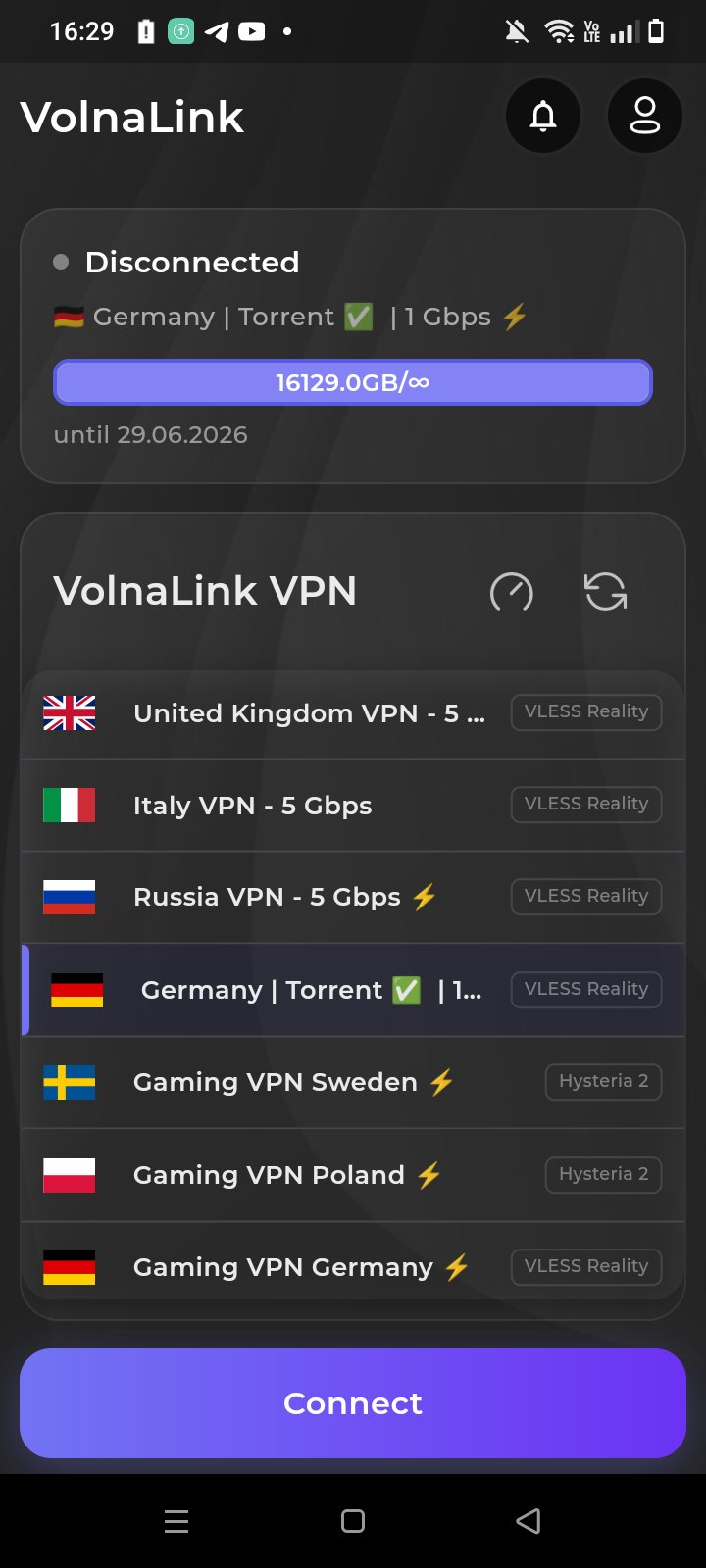
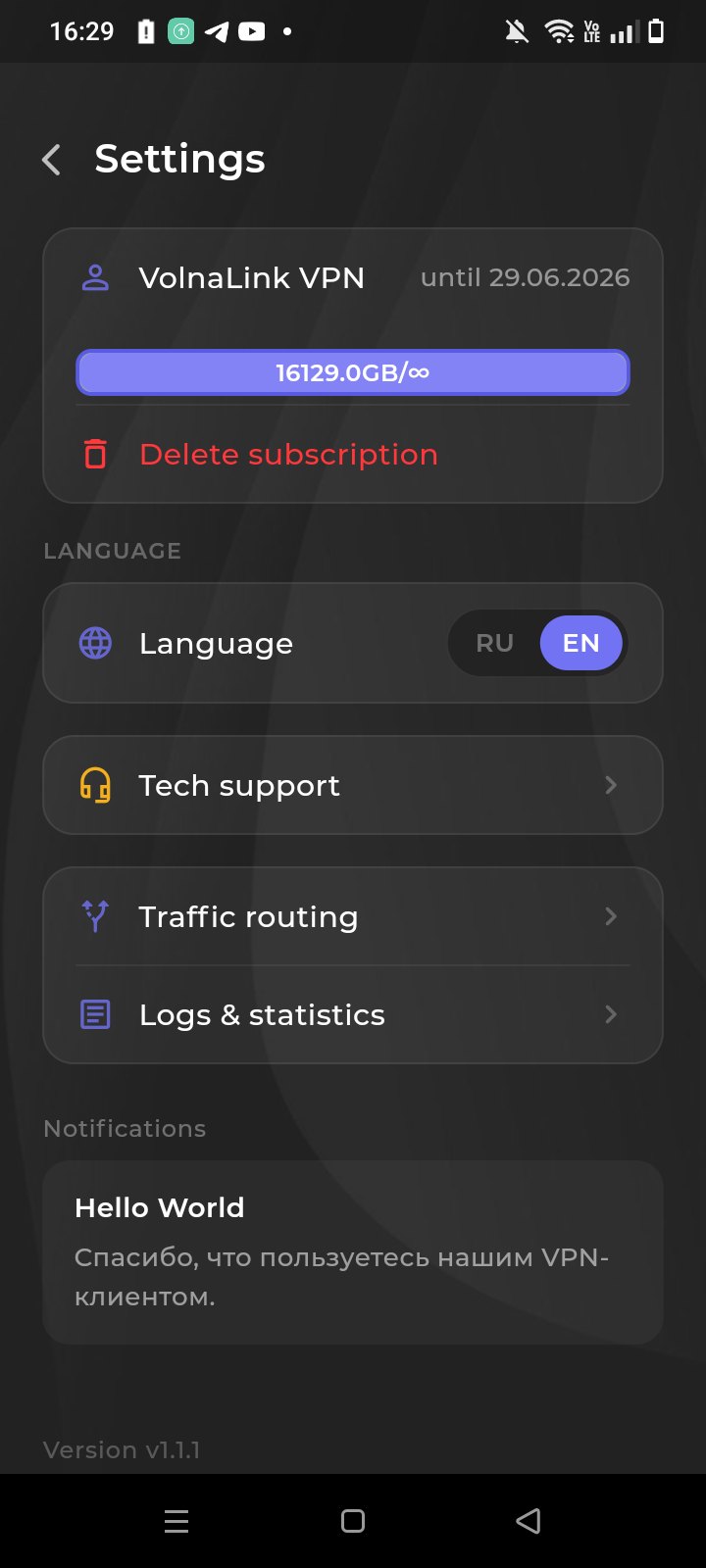
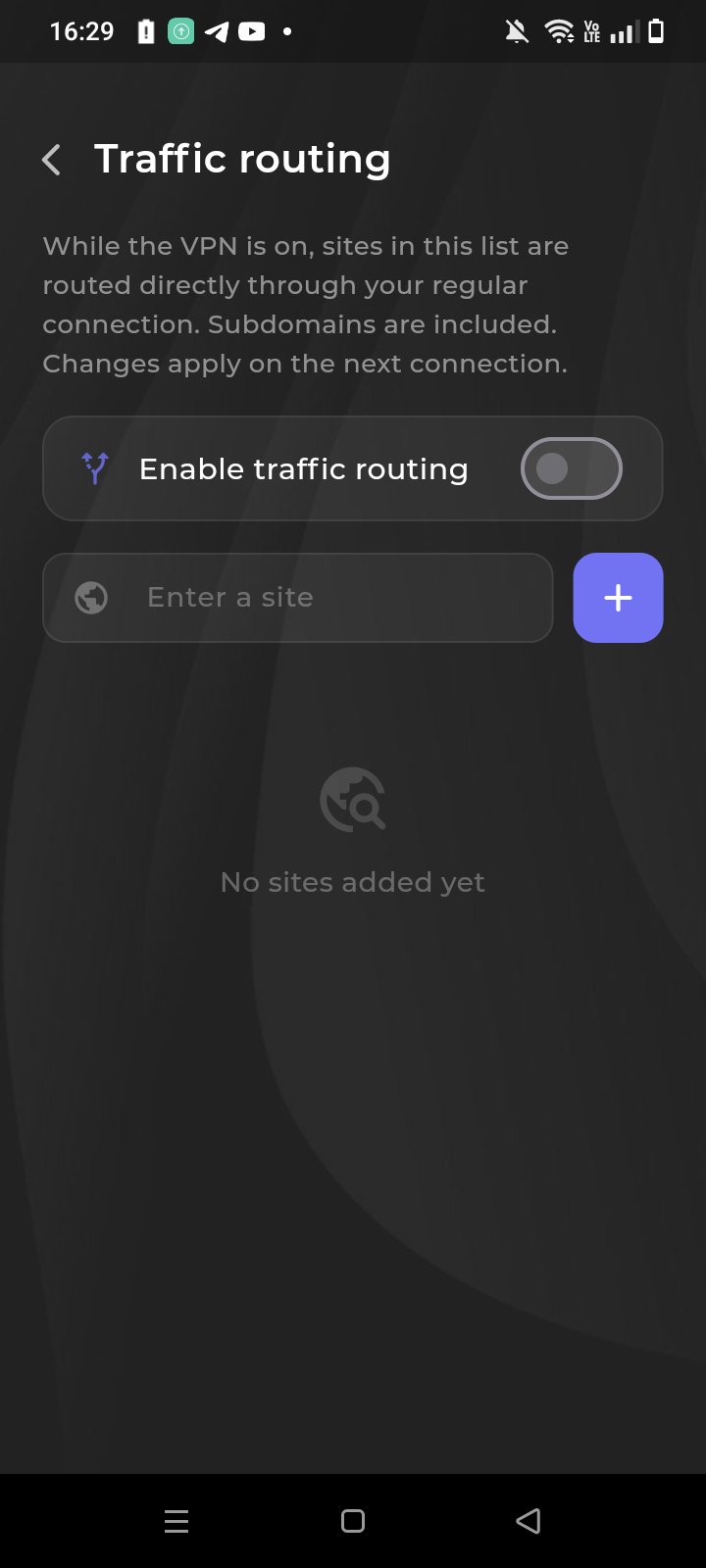
The Nuvo app for Android is a fast VPN with VLESS Reality, Trojan and Hysteria 2 protocols. One-tap connection, 90+ locations, DNS-leak protection and stable speed for streaming and gaming.
Sign in or create an account in your personal cabinet and choose your device there.
The app and install instructions are in your personal cabinet. Follow the method shown there for your device.
The first 8 hours are free with no card required. See the trial terms and how to add access in your personal cabinet.
Open the app, choose a country and connect. The system may ask to allow a VPN connection on first launch.
The app and installation instructions are available in your account. Choose your device there.
The app and install method are shown in your personal cabinet. Do not search the stores separately: see first what the cabinet offers.
If the system asks for permission to install from an unknown source, grant it only for the file from the cabinet and turn it off afterwards.
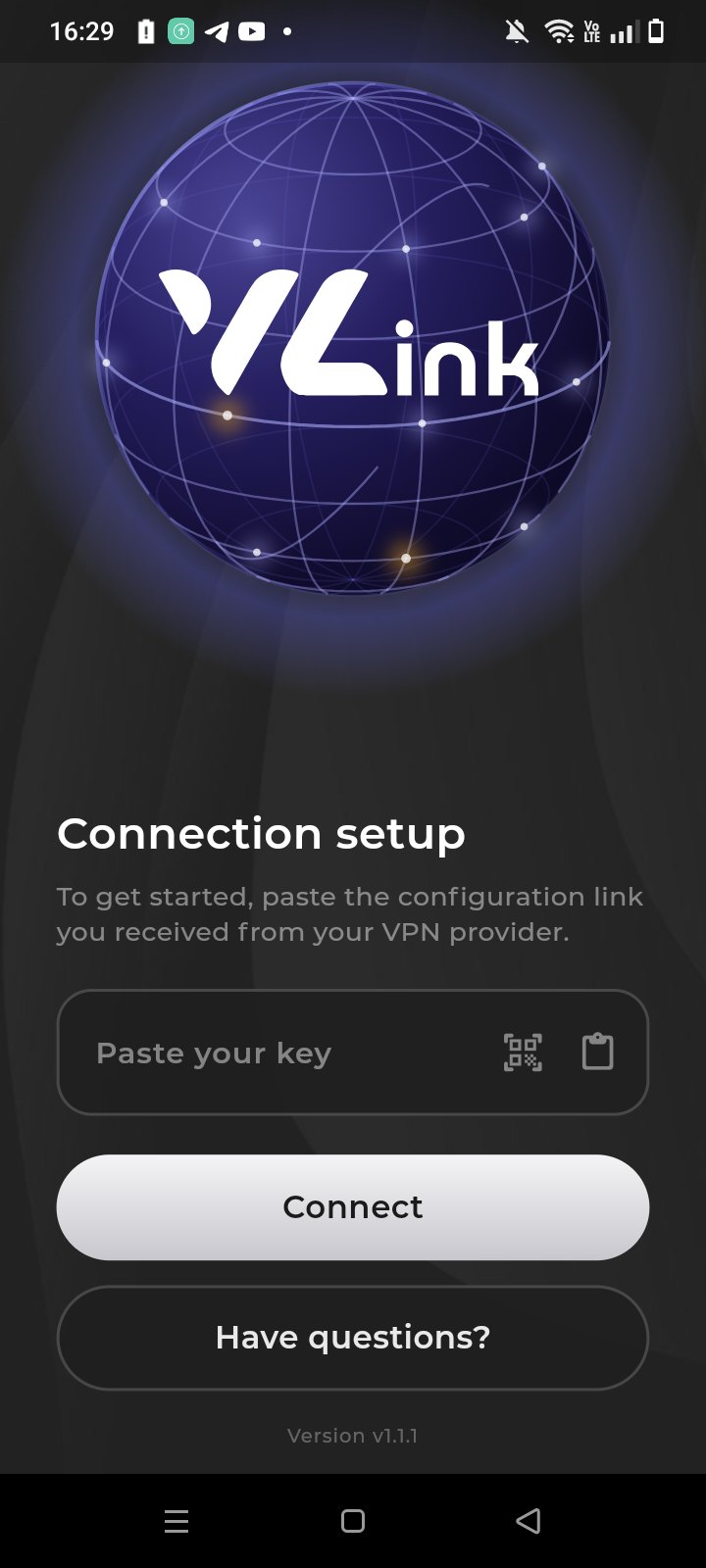
Sign in and add your subscription or key as the cabinet describes.
On first connection Android shows a system request to create a VPN connection. Confirm it if you pressed connect yourself. While the VPN is active the system usually shows a key icon in the status bar.
When networks change the connection may drop briefly and recover. If the status says connected but sites do not open, disconnect and connect again.
How the connection behaves after the screen locks depends on the Android version and the manufacturer shell: some systems stop background apps to save battery. Do not disable restrictions wholesale; change battery settings for the app only if they are what breaks the connection.
The first 8 hours are free with no card required; see the trial terms in your personal cabinet. After that the app works on a subscription that covers every country and platform.
The app works with VLESS Reality, Trojan and Hysteria 2 and picks the protocol automatically; if your app version offers a protocol choice, it is in the app settings. WireGuard and OpenVPN belong to manual setups such as a router, where available in your cabinet.
Yes, up to three simultaneous connections per account. Router connections are counted by the rules shown in your cabinet.
Open your personal cabinet, choose your device, follow the install method shown there, add access and connect.
 Nuvo
Nuvo