
The app and installation instructions are available in your account. Choose your device there.
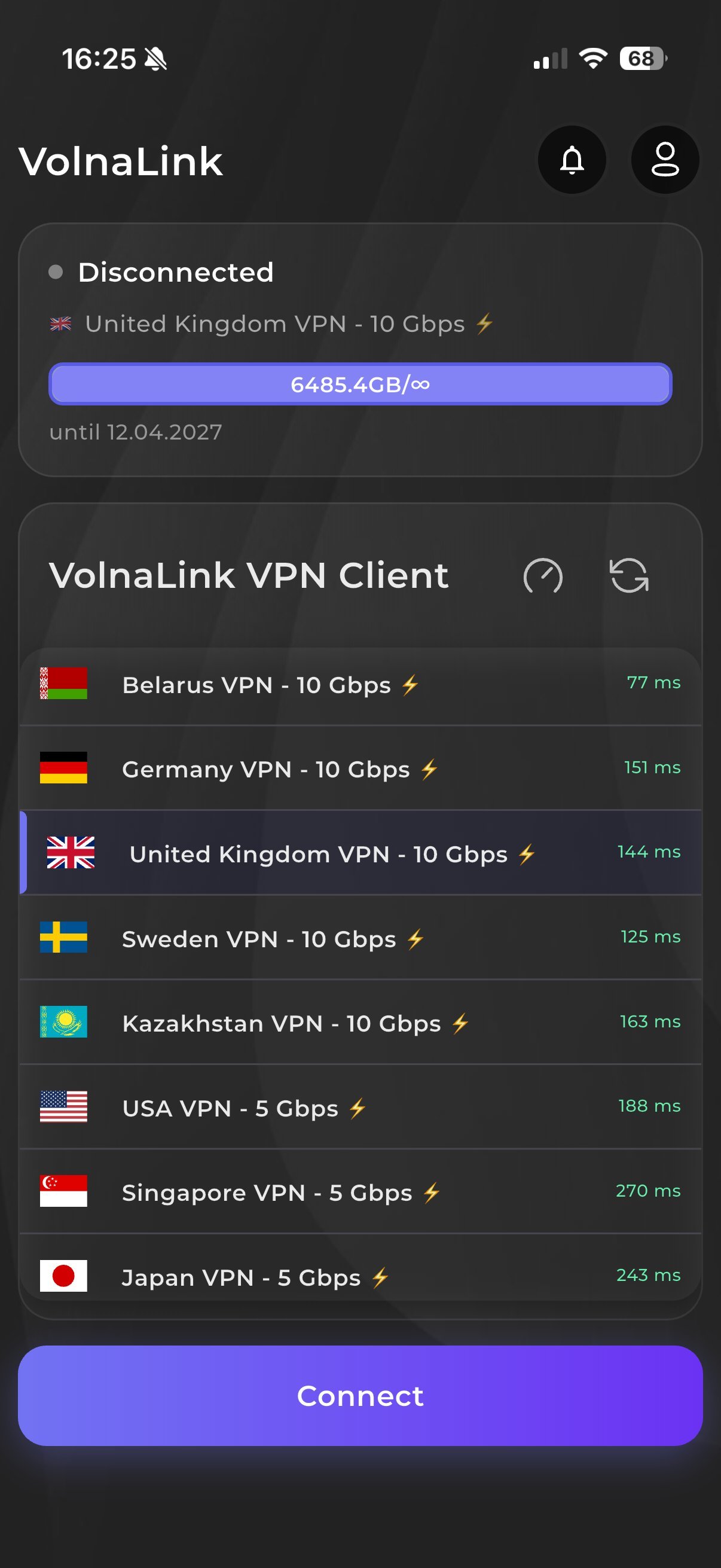
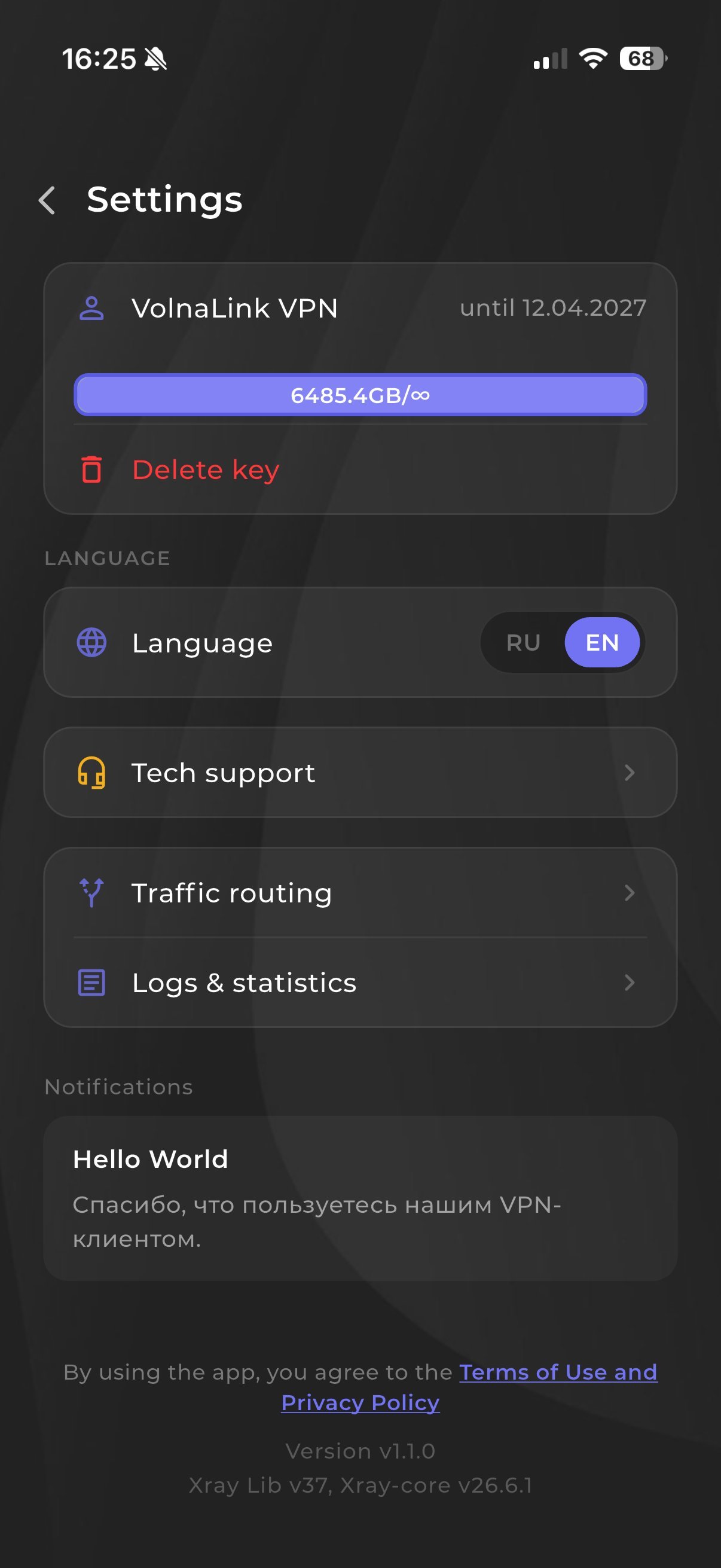
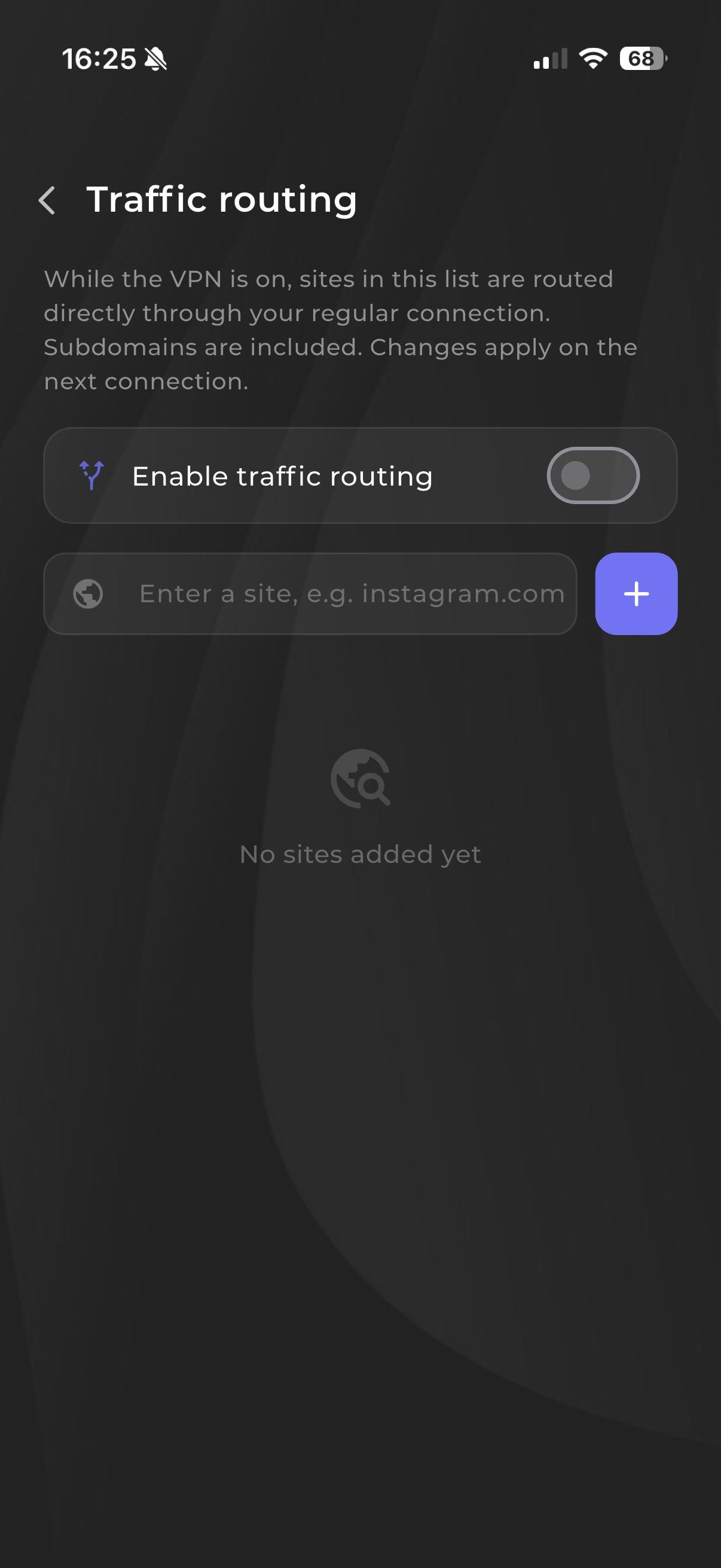
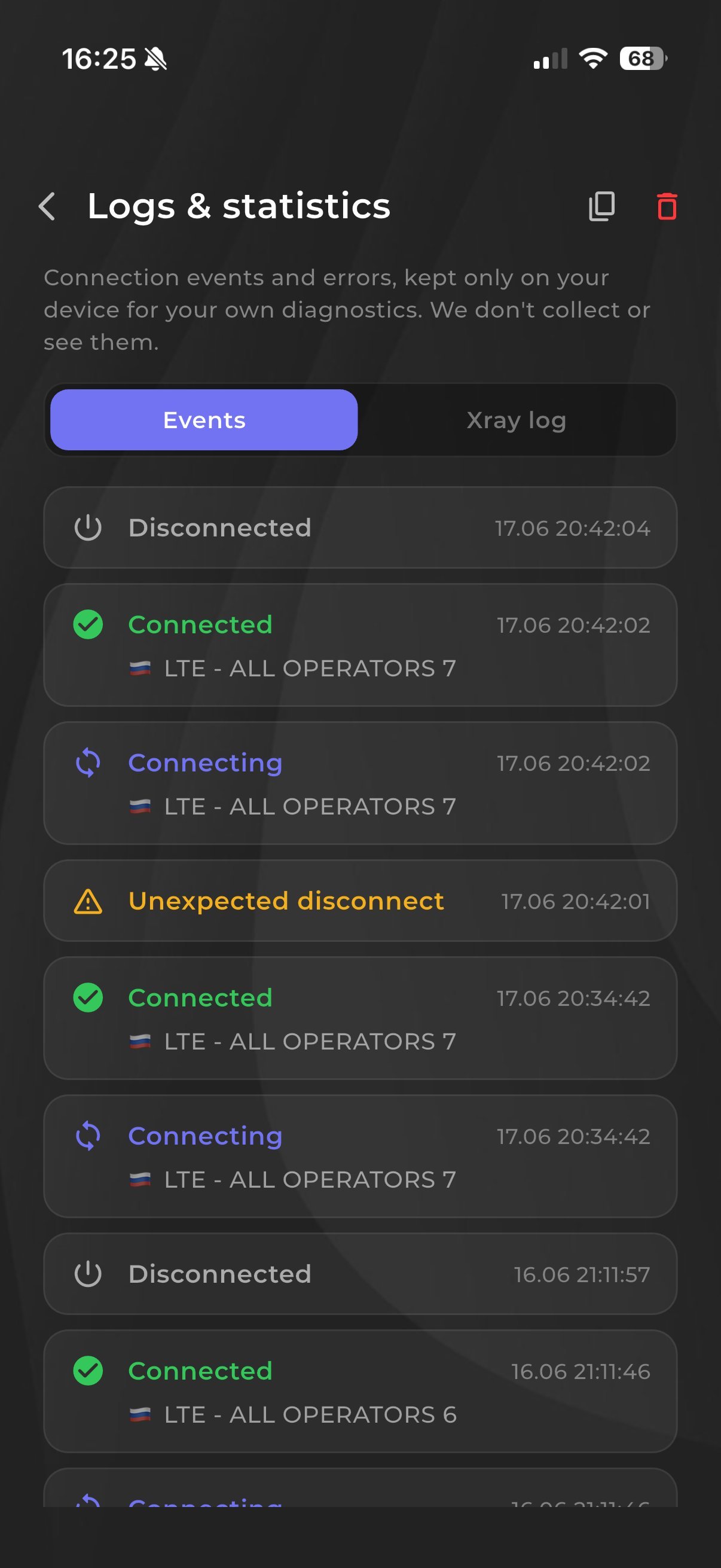
The Nuvo app for iPhone and iPad is a fast and secure VPN with modern protocols. One-tap connection, DNS-leak protection, a kill-switch and high speed for everything.
Sign in or create an account in your personal cabinet and choose your device there.
The app and install instructions are in your personal cabinet. Follow the method shown there for your device.
The first 8 hours are free with no card required. See the trial terms and how to add access in your personal cabinet.
Open the app, choose a country and connect. The system may ask to allow a VPN connection on first launch.
The app and installation instructions are available in your account. Choose your device there.
The app and install method are shown in your personal cabinet.
Follow the method the cabinet offers for your device. Compatible iOS and iPadOS versions are listed in the specifications on this page.
Sign in and add your subscription or key per the cabinet instructions.
On first connection iOS shows a request to add a VPN configuration and may ask for your passcode, Face ID or Touch ID. The connection will not start without confirmation.
Choose a country and press connect.
While the device is locked the VPN usually keeps running, but on a network change the connection may reconnect. If sites do not open after a change, open the app and check the status.
The sequence is the same; the iPad only has larger screens. VPN configurations are listed under Settings → General → VPN and device management; the section name depends on the iOS version.
The first 8 hours are free with no card required; see the trial terms in your personal cabinet. After that the app works on a subscription that covers every country and platform.
The app works with VLESS Reality, Trojan and Hysteria 2 and picks the protocol automatically; if your app version offers a protocol choice, it is in the app settings. WireGuard and OpenVPN belong to manual setups such as a router, where available in your cabinet.
Yes, up to three simultaneous connections per account. Router connections are counted by the rules shown in your cabinet.
Open your personal cabinet, choose your device, follow the install method shown there, add access and connect.
 Nuvo
Nuvo