
The app and installation instructions are available in your account. Choose your device there.
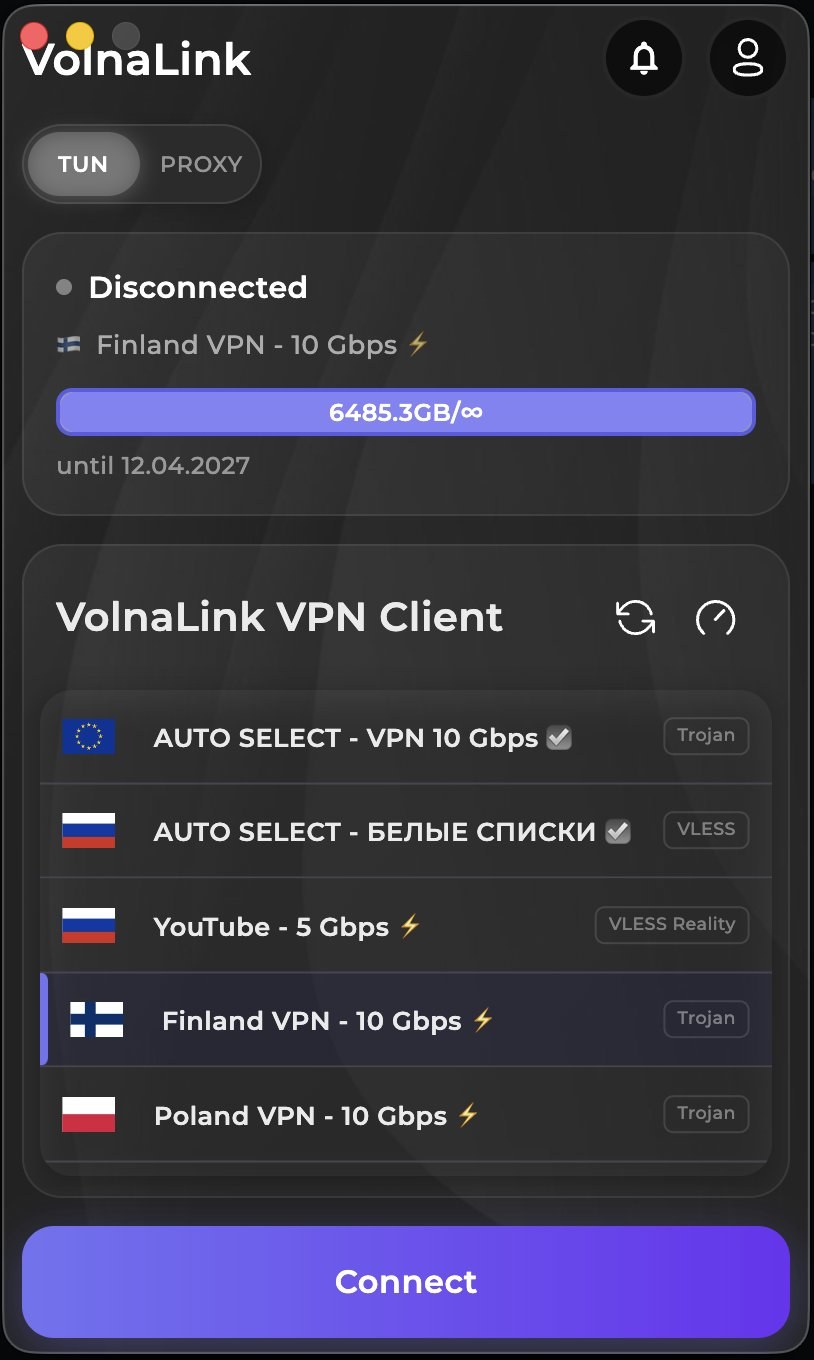
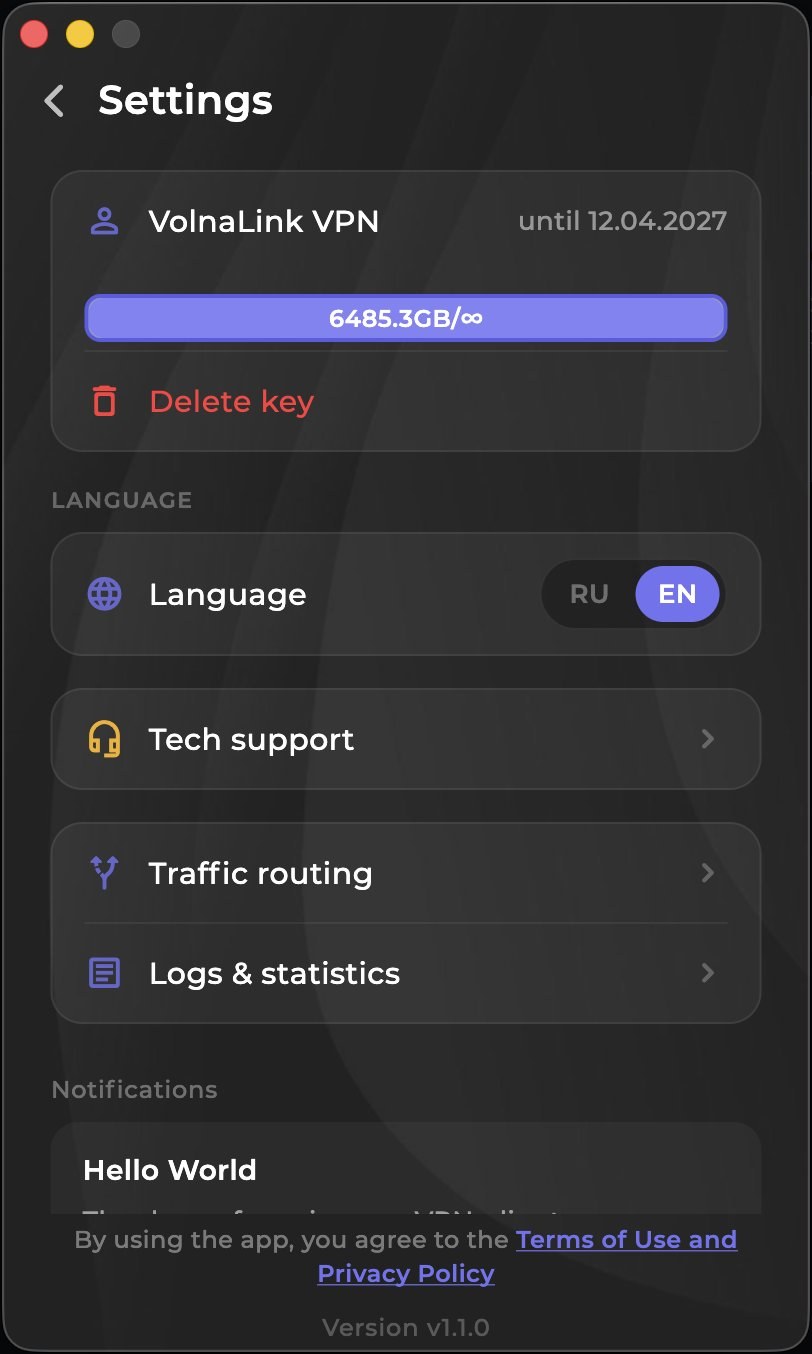
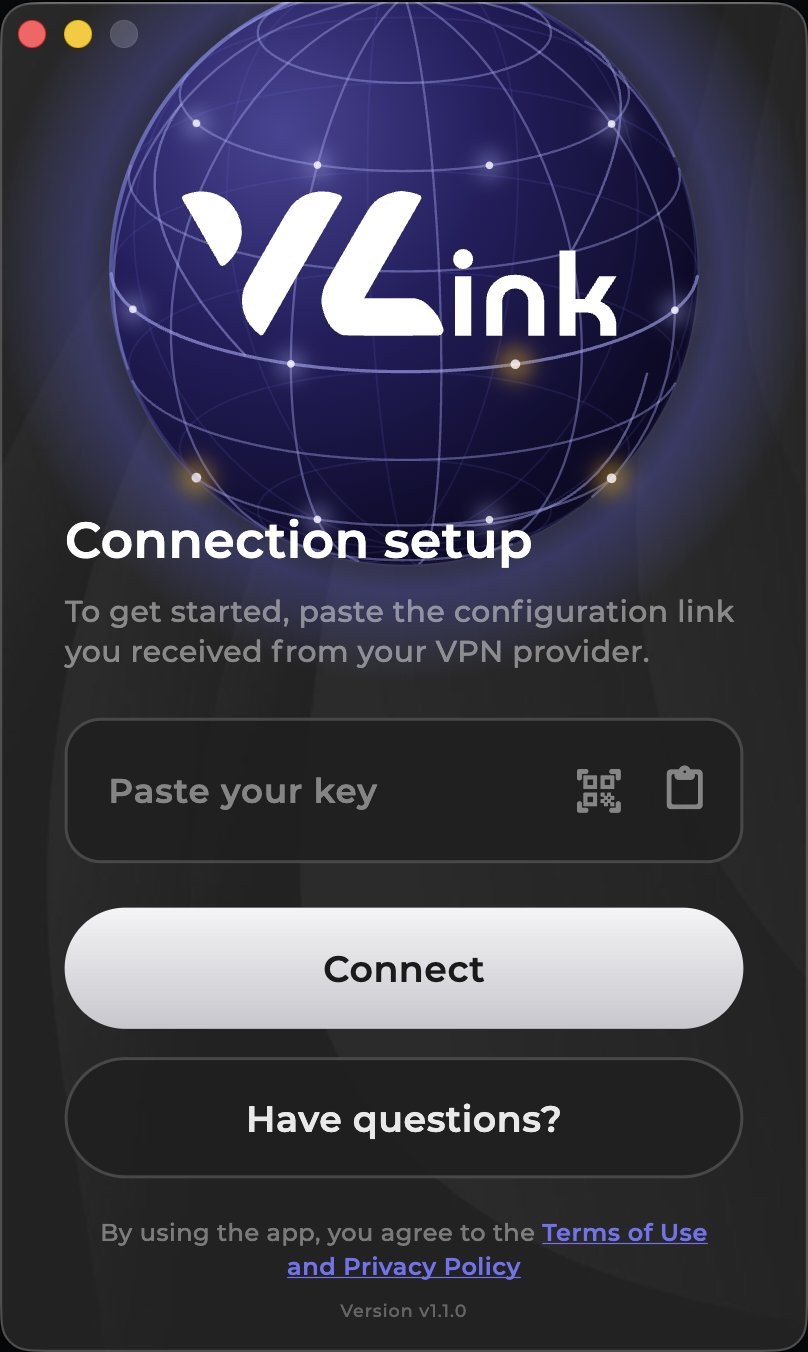
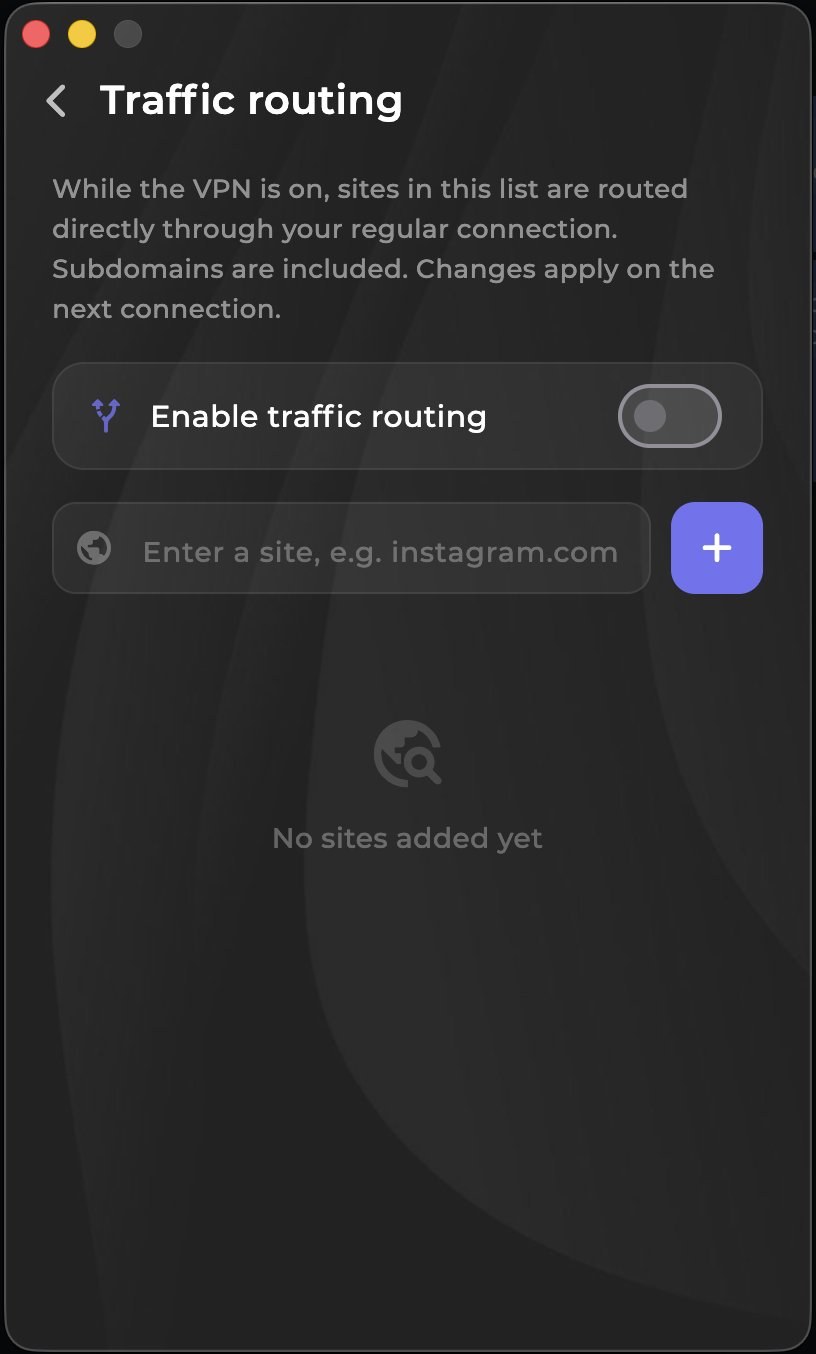
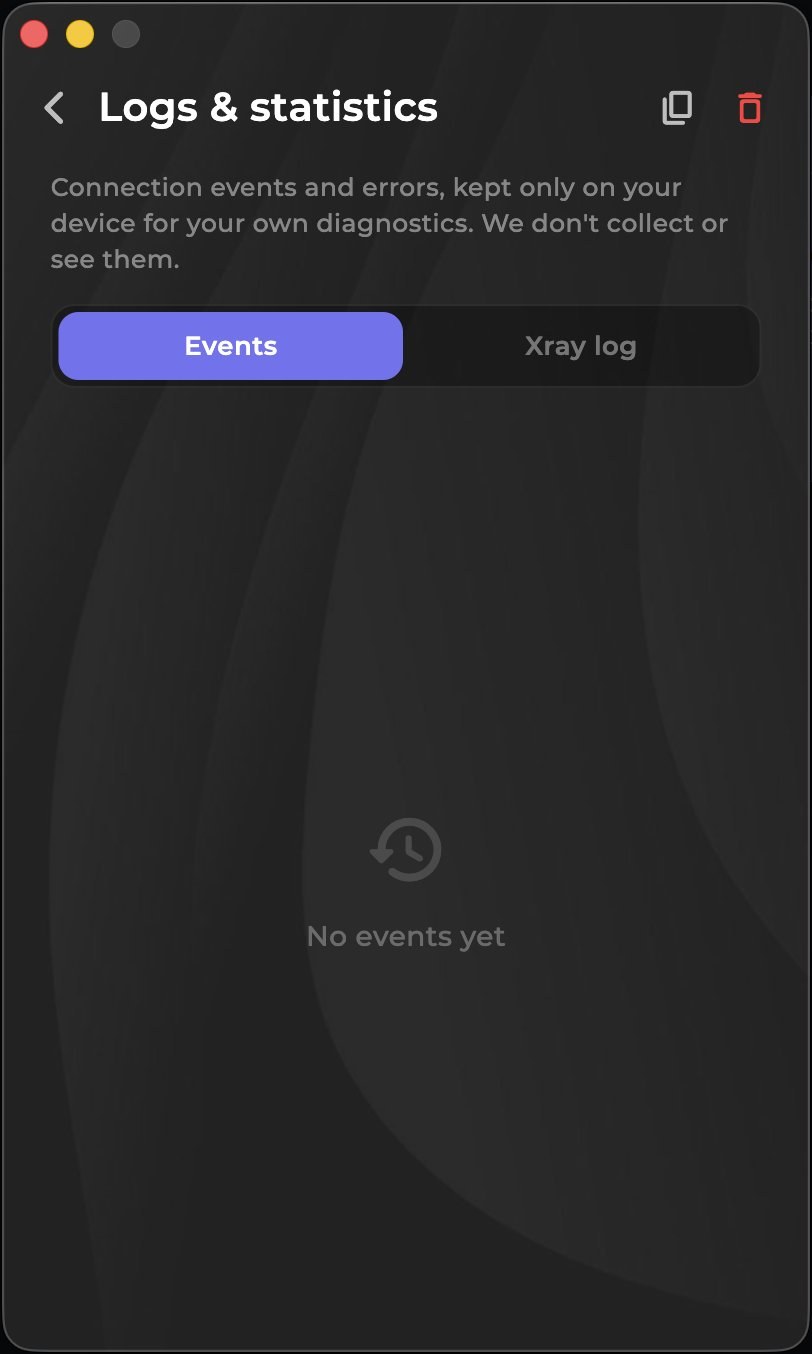
The Nuvo app for macOS runs natively on Intel and Apple Silicon. Modern VLESS Reality, Trojan and Hysteria 2 protocols, DNS-leak protection, a kill-switch and stable speed for everything you do.
Sign in or create an account in your personal cabinet and choose your device there.
The app and install instructions are in your personal cabinet. Follow the method shown there for your device.
The first 8 hours are free with no card required. See the trial terms and how to add access in your personal cabinet.
Open the app, choose a country and connect. The system may ask to allow a VPN connection on first launch.
The app and installation instructions are available in your account. Choose your device there.
Choose macOS in the cabinet. If several builds are offered, pick the one for your processor, Intel or Apple Silicon (Apple menu → About This Mac shows it).
Open the downloaded file and install as the cabinet describes. On first launch macOS may ask you to confirm opening an app downloaded from the internet: confirm only if the file came from the cabinet.
On first connection macOS may ask permission to add a VPN configuration or network extension and request your user password or confirmation in System Settings. Section names depend on the macOS version.
Sign in, add your subscription or key per the cabinet instructions, choose a country and connect.
Whether the connection resumes after a reboot or wake depends on the app settings and version. After a restart check the status and reconnect if needed.
Buttons and modes on macOS may be named differently from Windows. Follow the screens of your app version.
The first 8 hours are free with no card required; see the trial terms in your personal cabinet. After that the app works on a subscription that covers every country and platform.
The app works with VLESS Reality, Trojan and Hysteria 2 and picks the protocol automatically; if your app version offers a protocol choice, it is in the app settings. WireGuard and OpenVPN belong to manual setups such as a router, where available in your cabinet.
Yes, up to three simultaneous connections per account. Router connections are counted by the rules shown in your cabinet.
Open your personal cabinet, choose your device, follow the install method shown there, add access and connect.
 Nuvo
Nuvo